

Yo, Hytale grinders! If you’re like me, diving headfirst into early access since launch a few days ago, you’ve probably noticed the mouse sensitivity feels a bit… off. I spent my first couple hours in Zone 1 swinging wildly at mobs, missing every shot because my Minecraft habits didn’t translate. Coming from 50% sens in MC 1.8, I was spinning like a top! Lucky for us, tweaking mouse sensitivity in Hytale is super straightforward – separate sliders for horizontal and vertical, no config files needed. Whether you’re PvPing in adventure worlds or building epic bases, nailing this will make your aim buttery smooth.
This Hytale mouse sensitivity guide covers everything: step-by-step instructions, best settings, pro tips, and even a converter for switching from other games. Let’s dial it in!
Step-by-Step: How to Adjust Mouse Sensitivity in Hytale (PC)
Hytale’s settings are in-game only – no launcher tweaks required. Works in single-player, servers, or creative. Here’s the exact process I followed (and it saved my sanity):
- Launch Hytale and Load a World: Jump into any world or server. (Pro tip: Test in creative to avoid dying mid-tweak!)
- Open the Pause Menu: Hit Esc on your keyboard. Boom, menu pops up.
- Head to Settings: Click the Settings button (gear icon usually).
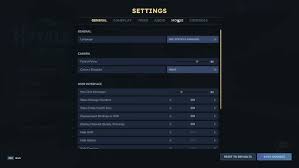
- Navigate to Mouse Tab: Look for the Mouse tab (some call it Controls – it’s under there). You’ll see sliders for:
- Left/Right Speed (horizontal sensitivity)
- Up/Down Speed (vertical sensitivity) Default is around 3.5 (scale 0-10). Drag ’em to your liking – lower for precision, higher for quick spins.
- Save and Test: Hit Save Changes (don’t skip this – I did once and rage-quit). Exit menu, move around, and adjust as needed.
Bonus Options in Mouse/Controls:
- Invert Mouse: Flip Y-axis (personal pref – off for me).
- Invert Mouse Wheel: For hotbar scrolling (on if you like backward scroll).
Took me literally 30 seconds the first time – now my T-Rex hunts in Zone 4 feel pro-level!
Best Hytale Mouse Sensitivity Settings (My Recommendations)
No one-size-fits-all, but based on my testing and community vibes:
- Casual/Builder: 4-6 (both H/V same for consistency).
- PvP/Competitive: 2-4 (lower for tracking those speedy raptors).
- High DPI Mouse (800+): Start at 1-2 to avoid over-aiming.
| Your DPI | Recommended Sens | cm/360 (Aim Feel) |
|---|---|---|
| 400 | 1-4 | Snappy |
| 800 | 0.5-2 | Balanced |
| 1200+ | 0.3-1.3 | Precise |
I rock 800 DPI at 1.2 sens – perfect for flicking to pterodactyls without overshooting.
Pro Tips for God-Tier Aim in Hytale
- Separate H/V Sens: Hytale lets you tweak horizontal/vertical independently – crank vertical lower if you’re bad at looking up (guilty!).
- Convert from Other Games: Use Mouse-Sensitivity.com – plug in your Fortnite/CS sens, get Hytale equivalent instantly. Saved me hours of tweaking.
- Raw Input?: Hytale supports it by default – no Windows interference.
- Test in Pre-Release: With tomorrow’s update (Jan 17), hop into pre-release via launcher for lag-free testing.
- Accessibility Win: Toggle screen shake or FOV too while you’re in settings.
If you’re on ROG Ally or handheld, same steps – just map Esc to a button!
Still Not Clicking? Common Fixes
- Restart Game: Settings sometimes need a reload.
- Check DPI: Use your mouse software (Logitech G Hub, Razer Synapse).
- Update Drivers: Nvidia/AMD control panel – set to “Enhanced Sync” for smooth tracking.
Hit me up in comments if it’s buggy – Discord’s #pre-release-testing is buzzing with fixes.
Your Turn: What’s Your Go-To Sens?
Mine’s 1.2@800 DPI – laser accurate! Drop yours below: High sens spinner or low sens sniper? Which Zone 4 dino did better aim help you slay? Smash subscribe for more Hytale guides, settings tweaks, and update breakdowns. Tomorrow’s patch is gonna slap – get that sens dialed NOW! 🚀